Use Timephased Planning
|
Resource Planning > Timephased Planning > Use Timephased Planning |
You can open and use Timephased Planning as follows:
➢In the schedule, click Features. (1)
➢Select the Show resource utilization checkbox. (2)
▶ Another table appears at the bottom of the page, enabling timephased planning. (3)
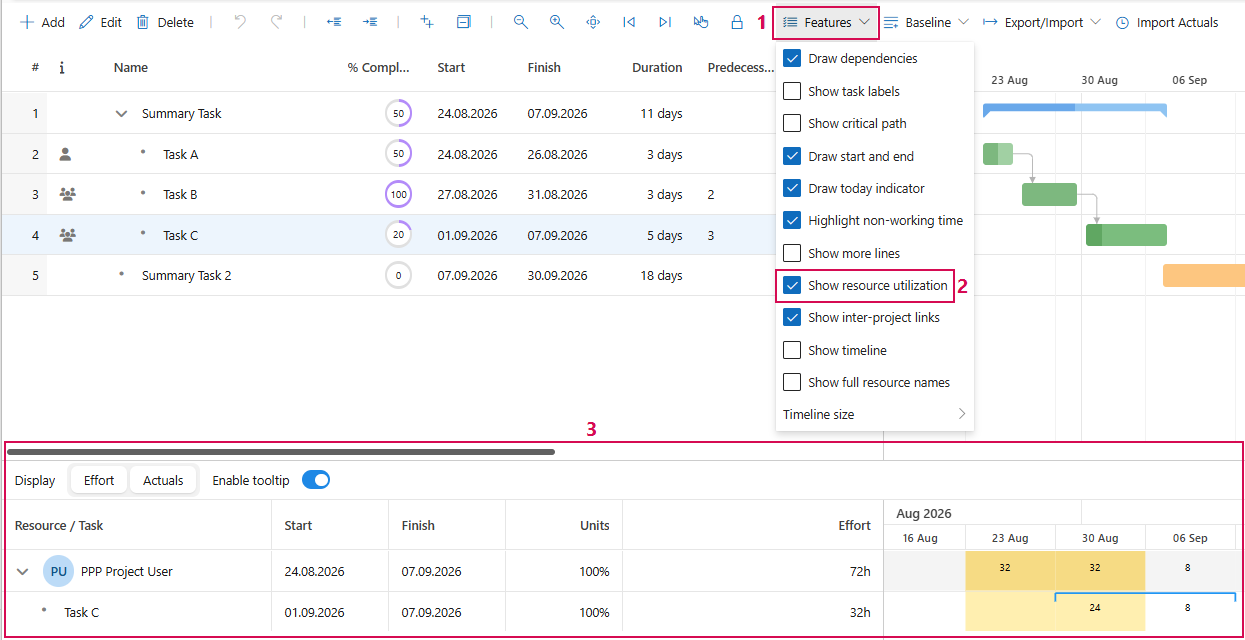
This table lists all tasks to which a resource is assigned on the left-hand side. The tasks are grouped by resource. On the right-hand side is a calendar view where you can view and edit resource workloads, actual values, and availability.
You can show or hide the workload and actual value, and enable or disable the tooltip:
➢Click on Effort or Actuals to show or hide it in the calendar view.
➢Click the Enable tooltip slider to disable it.
➢Double-click a cell in the calendar view to edit the data directly in the calendar view.