Specify Effort in Hours for Resource Assignments
Overview
This release introduces the ability for project managers to specify and edit effort in hours when assigning resources to tasks. This enhancement provides more granular control over resource allocation and automatically calculates task units and duration based on the task's scheduling mode.
Key Benefits
▪Specify exact effort hours for resource assignments
▪Units and duration automatically adjust based on scheduling mode
▪Edit effort in both the Resource Assignment dialog and Task Editor
▪Works seamlessly with Fixed Duration, Fixed Units, and Fixed Effort tasks
Feature Details
1. Effort Column Visibility
The Effort column is now always visible and editable in:
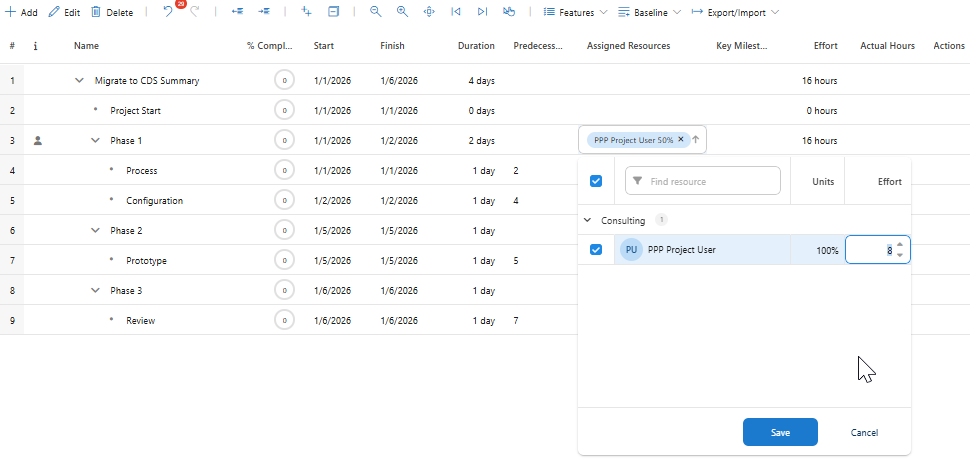
▪Resource Assignment Dialog (Resource Picker)
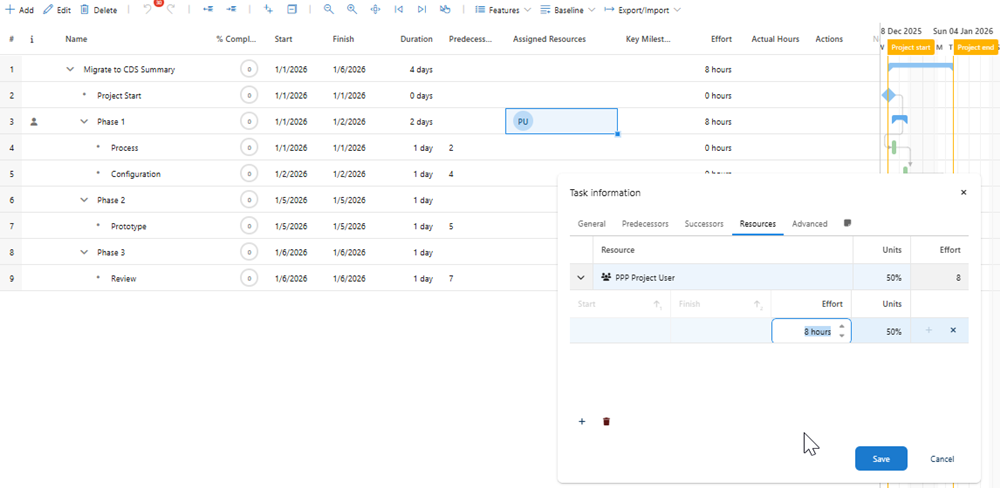
▪Task Information Form - Resources Tab (Task Editor)
Scheduling Modes and Effort Behavior
Understanding how effort interacts with different scheduling modes is crucial for effective project planning.
Fixed Duration Mode:
Behavior: Duration remains constant; changing effort adjusts units.
Formula: {code}Units = Effort / Duration{code}
Example 1: Reducing Effort
▪Initial State:
▪Duration: 5 days
▪Effort: 40 hours
▪Units: 100%
▪Action: Change effort to 20 hours
▪Result:
▪Duration: 5 days (unchanged)
▪Effort: 20 hours
▪Units: 50% (auto-calculated)
Example 2: Increasing Effort
▪Initial State:
▪Duration: 5 days
▪Effort: 40 hours
▪Units: 100%
▪Action: Change effort to 80 hours
▪Result:
▪Duration: 5 days (unchanged)
▪Effort: 80 hours
▪Units: 200% (auto-calculated)
Use Case: When you have a fixed deadline but need to adjust resource allocation intensity.
Fixed Units Mode
Behavior: Units remain constant; changing effort adjusts duration.
Formula: {code}Duration = Effort / Units{code}
Example 1: Reducing Effort
▪Initial State:
▪Duration: 5 days
▪Effort: 40 hours
▪Units: 100%
▪Action: Change effort to 20 hours
▪Result:
▪Duration: 2.5 days (auto-calculated)
▪Effort: 20 hours
▪Units: 100% (unchanged)
Example 2: Increasing Effort
▪Initial State:
▪Duration: 5 days
▪Effort: 40 hours
▪Units: 100%
▪Action: Change effort to 80 hours
▪Result:
▪Duration: 10 days (auto-calculated)
▪Effort: 80 hours
▪Units: 100% (unchanged)
Use Case: When resource availability is fixed (e.g., one person at 100%) and you need to determine how long the task will take.
Fixed Effort Mode
Behavior: Effort remains constant; changing units adjusts duration.
Formula: {code}Duration = Effort / Units{code}
Example 1: Reducing Units
▪Initial State:
▪Duration: 5 days
▪Effort: 40 hours
▪Units: 100%
▪Action: Change units to 50%
▪Result:
▪Duration: 10 days (auto-calculated)
▪Effort: 40 hours (unchanged)
▪Units: 50%
Example 2: Increasing Units
▪Initial State:
▪Duration: 5 days
▪Effort: 40 hours
▪Units: 100%
▪Action: Change units to 200%
▪Result:
▪Duration: 2.5 days (auto-calculated)
▪Effort: 40 hours (unchanged)
▪Units: 200%
Use Case: When the total work is fixed (e.g., 40 hours of development work) and you want to see how adding more resources affects the timeline.
How to Use the Feature
Method 1: Resource Assignment Dialog (Resource Picker)
➢Open a project in the scheduler
➢Click on the Assignments cell for any task
➢Select a resource from the resource picker
➢Edit the Effort field directly in the grid
➢Enter the desired effort in hours (e.g., 20, 40, 80)
➢Observe automatic calculations:
➢For Fixed Duration: Units will auto-calculate
➢For Fixed Units: Duration will auto-calculate
➢For Fixed Effort: Duration adjusts when units change
➢Click Save to persist changes
Method 2: Task Editor - Resources Tab
➢Select a task in the scheduler grid
➢Open Task Editor via:
➢Command bar button, or
➢Right-click context menu → "Task Information"
➢Navigate to the Resources tab
➢Edit the Effort column for any assigned resource
➢The effort field is editable when single assignment exists
➢Shows aggregated effort when multiple assignments exist
➢Observe automatic calculations based on scheduling mode
➢Click Save to apply changes
Migration Notes
For Existing Projects
▪Existing assignments will display calculated effort based on current units and duration
▪No data migration required
▪Effort column appears automatically in both dialogs
Configuration Changes
▪No custom configuration needed to enable this feature
▪Effort column is part of default configuration