Admins Can Set Timesheet Budget Limits
Overview
Timesheet Budget helps control how many hours can be logged against a task assignment in Advanced Grid timesheets.
The budget is tracked at assignment level. This means the system looks at the total hours already logged for the assignment across all timesheet entries, not only the hours entered in the current week or on the current task date range.
Use this feature to:
▪monitor how much of an assignment's effort budget has already been consumed
▪warn users before the full budget is used
▪stop submission when overbooking is not allowed
▪keep the existing timesheet behavior unchanged when the feature is disabled
How It Works
Each assignment has an effort budget. When a user edits a timesheet cell, the system recalculates the cumulative total logged for that assignment and compares it with the configured budget.
The result depends on two things:
▪the cumulative utilization percentage
▪whether the assignment allows overbooking
What Users See
Budget Tooltip:
Hover over a budget-aware timesheet cell to see the current budget details.
The tooltip shows:
▪assignment effort budget
▪total hours logged so far
▪remaining budget
▪utilization percentage

In the example above, the assignment budget is 16.00 hours, 16.00 hours have already been logged, the remaining budget is 0.00 hours, and utilization is 100%.
Warning Threshold
The feature supports a configurable warning threshold. The default threshold is 80%.
When the cumulative utilization reaches the warning threshold, the timesheet shows a warning state after the entry is submitted so the user can immediately see that the assignment is at or near its budget limit. The cell shows a yellow warning indication.

In this example, the assignment has reached 100% utilization. The remaining budget is 0.00 hours.
Over Budget
When the cumulative logged hours go above the assignment budget, the remaining budget becomes negative and utilization goes above 100%.
The cell behavior depends on whether overbooking is allowed for the assignment:
▪If overbooking is allowed, the edit is allowed and the timesheet cell shows an orange or yellow warning indication.
▪If overbooking is not allowed, the timesheet cell shows a red error indication and submission is blocked.
When utilization goes above 100%, the cell is marked in red after submitting if overbooking is not allowed.

In this example, 17.00 hours were logged against a 16.00 hour assignment budget. The remaining budget is now -1.00 hours and utilization is 106%.
Behavior by Scenario
Scenario |
Result |
Logged hours are below the warning threshold |
Entry is allowed and the tooltip shows the current budget status |
Logged hours reach the warning threshold |
After submitting the entry, the timesheet cell shows a yellow warning indication |
Logged hours exceed the budget and overbooking is allowed |
The edit is allowed and the timesheet cell shows an orange or yellow warning indication |
Logged hours exceed the budget and overbooking is not allowed |
The timesheet cell shows a red error indication and submission is blocked |
Logged hours exceed 100% utilization and overbooking is not allowed |
After submitting, the timesheet cell is marked in red |
Example User Flow
1.Open the Advanced Grid timesheet.
2.Enter hours for a task assignment.
3.Hover over the timesheet cell to review budget, remaining hours, and utilization.
4.If the assignment is near or above budget, review the warning or error state.
5.Submit the timesheet.
6.If overbooking is allowed, submission continues.
7.If overbooking is not allowed, correct the entry before submitting again.
Feature Flag and Configuration
Budget validation is controlled by the timesheet configuration JSON and by the assignment field that determines whether overbooking is blocked.
To enable the full Timesheet Budget behavior:
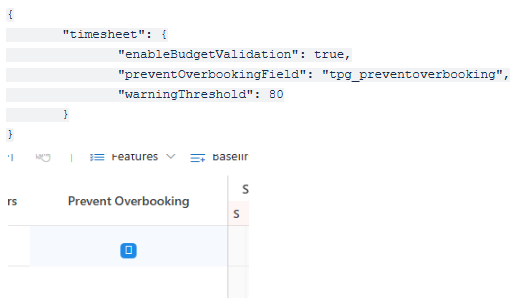
➢set enableBudgetValidation to true
➢set preventOverbookingField to the schema name of the assignment field that stores the overbooking rule, for example tpg_preventoverbooking
➢confirm that the assignment budget field is populated so the timesheet has a budget to compare against
➢optionally adjust warningThreshold if you want a value other than the default 80%
➢optionally set budgetField if the assignment budget is stored in a field other than the default effort field
➢in Scheduler, add the Prevent Overbooking column to the assignment view and enable it for assignments that must block over-budget time entry
When enableBudgetValidation is enabled:
▪the timesheet reads the assignment budget and compares it with the cumulative logged hours for the assignment
▪tooltip information is available on budget-aware cells
▪the warning threshold is evaluated and warning colors are shown when the configured utilization limit is reached
▪the preventOverbookingField value decides whether an over-budget entry is blocked or only shown as a warning
▪if budgetField is configured, that field is used as the budget source instead of the default assignment effort field
When enableBudgetValidation is disabled:
▪the existing timesheet behavior remains unchanged
▪budget validation does not affect entry or submission
The Prevent Overbooking value is maintained on the assignment in Scheduler. If this field is active for an assignment, over-budget submission is blocked and the cell shows a red error state. If it is not active, the user can still enter time above budget, but the cell shows a warning state instead.
Example configuration:
Important Notes
▪Budget usage is cumulative across all timesheet entries for the same assignment.
▪The calculation is independent of task date boundaries.
▪The warning threshold is configurable and defaults to 80%.
▪Whether overbooking is allowed depends on the assignment configuration.
▪When overbooking is allowed, an over-budget cell remains editable but shows an orange or yellow warning indication.
▪When overbooking is not allowed, an over-budget cell shows a red error indication.
▪When the configured warning threshold is reached, the cell shows a yellow warning indication after submitting.
▪When utilization exceeds 100% and overbooking is not allowed, the cell is marked in red after submitting.
Summary
Timesheet Budget gives users immediate feedback about assignment utilization, warns when an assignment is close to its limit, and can block submission when overbooking is not allowed. This helps protect assignment effort limits while still supporting flexible behavior where overbooking is permitted.