Pre-defined Jobs
Before you can use MS Project Desktop Integration, the technical prerequisites for TPG PSLink, the PPP environment, and the MS Project add-in must be met.
▪An active TPG PSLink subscription is in place.
▪The PSLink site contains the MS Project Desktop Integration system link.
▪The system link points to a PPP environment in Dataverse.
▪The TPG MS Project Desktop Integration add-in is installed.
▪The MS Project Desktop project plan is linked to the corresponding TPG ProjectPowerPack project.
The connection to the PPP project is established via a custom document property in the .mpp file. To do this, create a text property named PPP_ID in the project information and enter the GUID of the corresponding TPG ProjectPowerPack project as its value.
You can add or edit this information via the File menu in MS Project Desktop:
➢Open the desired project in MS Project.
➢Click File.
➢Click Info. (1)
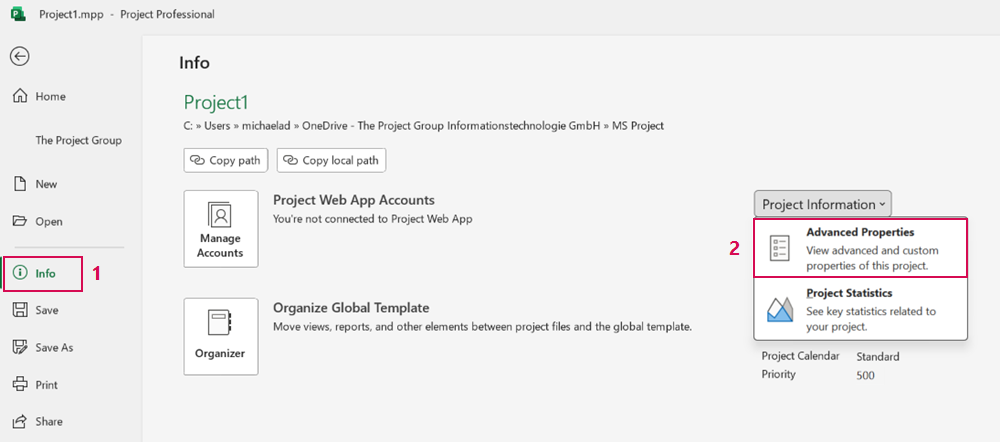
➢Go to the Project Informationen drop-down menu.
➢Click Advanced Properties. (2) ▶ A dialog field appears.
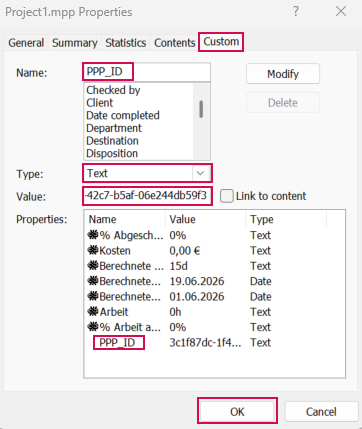
➢Click Custom, to switch to the Costum tab.
➢Add a custom document property with the following settings:
▪Name: PPP_ID
▪Type: Text
▪Value: Enter the GUID of your corresponding TPG ProjectPowerPack project.
➢Click Ok.
Configure the Ribbon
When you first launch the add-in, it usually does not yet contain any configured buttons. The ribbon configuration determines which buttons are displayed in MS Project Desktop and which tasks can be launched from them.
Details on ribbon configuration are described in the section Ribbon Customization.
▶ If the following error message appears during synchronization, check the GUID stored in the project.
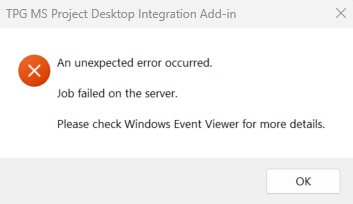
This message may be caused by one of the following:
▪The stored GUID does not match the GUID of the linked project.
▪The GUID was entered incorrectly (e.g., due to a typo).
▪No GUID has been stored.
▪The existing GUID was subsequently removed.
▶ Ensure that a valid GUID is stored and that it exactly matches the GUID of the linked project.