Assign Roles
After adding a user or an application, at least one role must be assigned. Role management takes place in the User & Roles section.
▶ Newly added users are initially displayed without a role or permission. You can find users without a role under Unassigned.
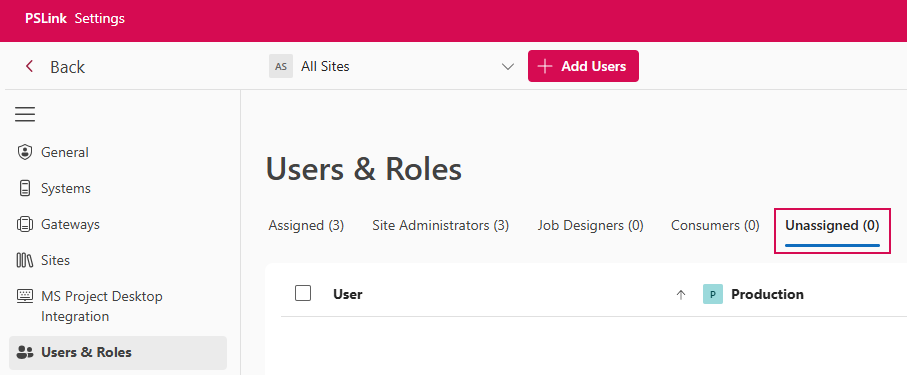
Assign a Role to a User:
➢Open Users & Roles.
➢Select the desired site using the Site Selector.
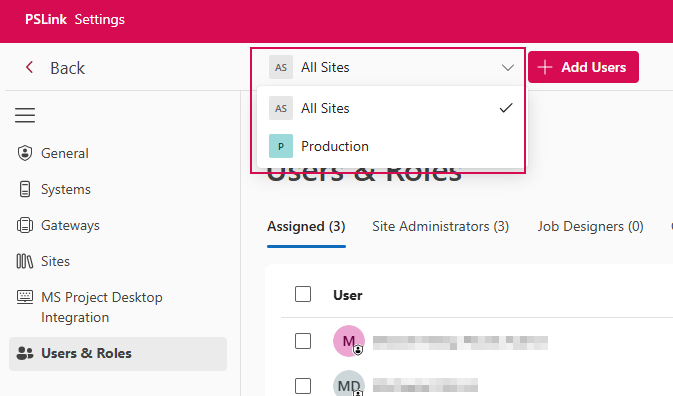
➢Search for the user or application in the list.
➢Click +. (1) ▶ A drop-down menu opens.
➢Select the desired role. (2)
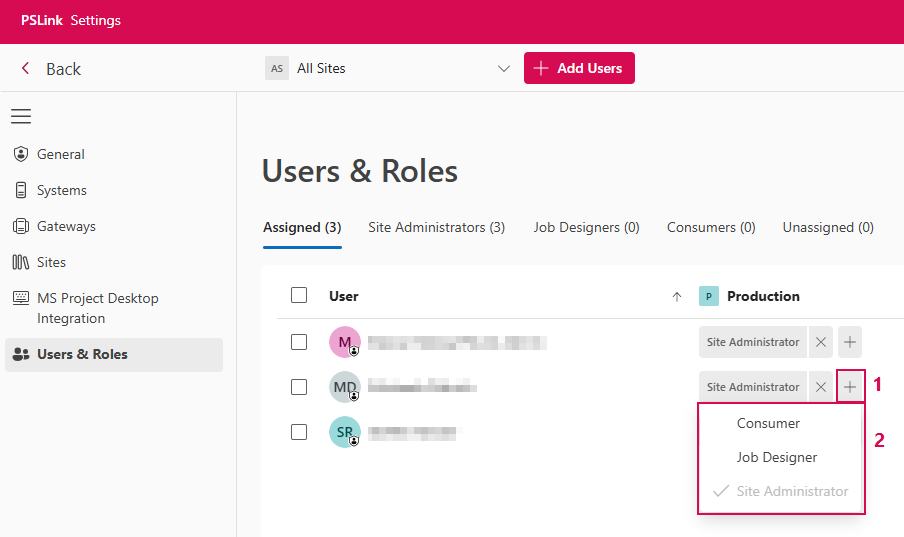
The user will then have the permissions associated with the selected role.
Filter Users:
Users can be filtered and displayed based on their assigned roles. The following sections are available for this purpose:
▪Assigned: All users who have been assigned a role.
▪Site Administrator: Users with the Site Administrator role.
▪Job Designer: Users with the Job Designer role.
▪Consumer: Users with the Consumer role.
▪Unassigned: Users without a role.
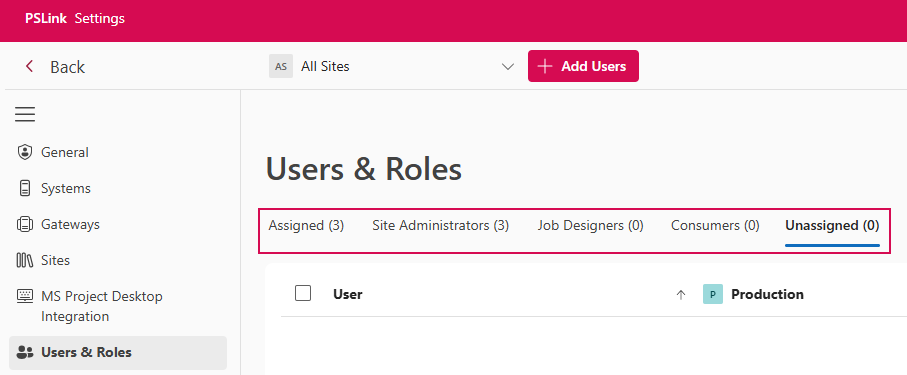
➢ Click the desired section to view the corresponding users.