Power Automate Flow
|
Configure Settings for Content Pages > TPG Scheduler Configuration > Power Automate Flow |
With this configuration, you can add additional flow buttons to the command bar that allow you to launch Power Automate flows for selected items directly from PPP.
This sends HTTP POST requests to a Power Automate flow. The button is then available to users in the command bar.
▶ All required fields are marked with a red asterisk.
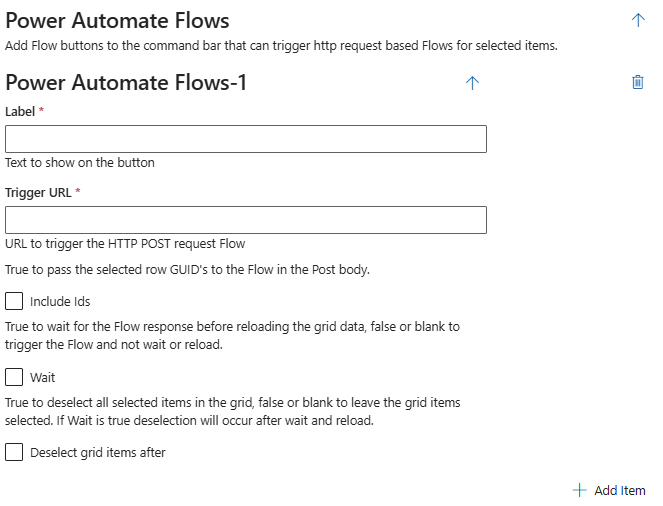
➢Click Add item. ▶ The input fields appear
➢Label: Geben Sie den Text ein, der auf der Schaltfläche erscheinen soll.
➢Trigger URL: Enter the text you want to appear on the button.
➢Check the Include Ids checkbox to pass the GUIDs of the selected rows to the flow in the POST body.
➢The Wait checkbox controls the behavior after the flow starts:
➢Enabled: The application waits for the flow’s response. The data in the grid is then reloaded.
➢Disabled: The flow starts in the background. The application does not wait for a response, and the data is not automatically reloaded.
➢The Deselect grid items after checkbox determines whether the selected items are deselected after the flow runs.
➢Enabled: The selection of the items is cleared.
➢Disabled: The current selection is retained.
Additional editing options:
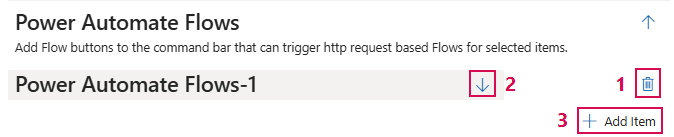
➢Click the Delete icon to delete a field. (1)
➢Click the up or down arrow to expand or collapse the desired column configuration. (2)
➢Click Add Item to add a field. (3)
Complete the configuration:
➢Click Submit at the very bottom to apply the settings.